Performances
Cloud Gateway uses a lot of technical mecanisms to improve the user experience by reducing latency and speeding up transfers:
- a smart caching alogrithms, in order to keep the often-used files locally ;
- constant monitoring of storage instances, to be able to choose the fastest one at any time ;
- HTTP-multiplexing and connection pooling, to avoid opening a TCP connection if possible ;
- compression, in case your bandwidth is the limiting factor.
Nevertheless, Cloud Gateway depends on the performance of some critical parts.
PostgreSQL
Cloud Gateway stores the filesystem metadata in a PostgreSQL database, and therefore the performance of the database server is critical. For most user, the default configuration of PostgreSQL will be fine, but for those needing the best possible performance it is possible to tweak the database configuration.
Tuning PostgreSQL configuration
While configuring a database server is a tricky job, here are some pointers. The first thing one need to understand about database tuning is that the best performance is obtained when most of the database data are in memory, because disk accesses are slow. For PostgreSQL, this means that the server should be allocated enough memory. The size of memory allocated is controlled by the shared_buffers option, and is allocated once for a PostgreSQL service, not per connection. On a Cloud Gateway host, shared_buffers should be set somewhere between 1/8 and 1/4 of the total RAM of the host.
In addition, you will probably have to increase the maximum size of a shared memory segment, in /etc/sysctl.conf (reboot required, use sysctl otherwise):
# for example, for 16 Go
# Maximum size of shared memory segment (bytes)
kernel.shmmax=17179869184
# Total amount of shared memory available (pages)
kernel.shmall=4194304
Then, set the effective_cache_size option to the value you expect to be free for use by the kernel for disk caching and the postgresql shared_buffers. This is an indication, not an allocation, so 3/4 of your host’s memory is a good bet if PostgreSQL is the only service running on that host (1/4 if Cloud Gateway is running on the same host).
If you have a write-intensive setup, you can try to increase wal_buffers option which, beginning with PostgreSQL 9.1, defaults to 1/32 of shared_buffers, with an upper limit of 16MB. wal_buffers is allocated once for a PostgreSQL service, not per connection.
For more indications on PostgreSQL tuning, you can refer to http://wiki.postgresql.org/wiki/Tuning_Your_PostgreSQL_Server or to the book of Gregory Smith, PostgreSQL 9.0 High Performance, which is freely available on internet at http://it-ebooks.info/book/1453/.
Deporting the PostgreSQL server
It may happen that the host where Cloud Gateway is installed is running out of resources, be it CPU, disk I/O or memory. In this case, we advise to deport the PostgreSQL server to another host. This can easily be done by dumping the existing database with the pg_dump, importing it on the new server and then editing the DB/Specifics/ConnectionString in the CloudGatewayConfiguration.xml file.
For example, in order to dump (as root) the existing database named cloudgw_db:
$ pg_dump cloudgw_db -f cloudgw_db_dump.sql
Then, on the new server :
$ psql -d cloudgw_db -f cloudgw_db_dump.sql
Setting up a PostgreSQL cluster
For very heavy load, a single database server may not be enough. Beginning with version 1.1.2, Cloud Gateway supports the use of a different connection for altering statements (insert, update, delete) and read-only statements, thus enabling the use of a master and a ferm of slaves. The connection string for the master should stay in the DB/Specifics/ConnectionString directive, while the connection string for the read-only statements has to be specified in the DB/Specifics/ReadOnlyConnectionString.
Cache
After the PostgreSQL server, the cache is the most critical component of Cloud Gateway performance-wise. While a sub-directory of the root partition will work finely for a light load, a dedicated, fast hard drive will be needed for a moderate load. In order to do obtain the best possible user experience, Nuage Labs recommends the use of Solid State Drive [15] for reduced latency and better throughput, as this technology is now available for a cheap price.
For the most intensive setups, Nuage Labs recommends a dedicated RAID array of disks, the exact type being very dependant on the data typology. Please contact your reseller for more information.
Network
While Cloud Gateway is trying very hard to always have the data you need in its cache, a time will always come when the file you need will have to be retrieved from your cloud storage provider. For this reason, we advise that Cloud Gateway is provided with the fastest access to the cloud storage possible, and that the network link to the cloud storage be kept separated from the network link used to provide users access to data, as Cloud Gateway has no problem using 100 percent of a Gigabit link if configured to do so.
Encryption
Encryption has a high CPU cost, depending on the CPU hardware support and the algorithm used. Recent CPU supporting the AES instruction set (also known as Intel AES-NI) are very fast at AES encoding, as shown in the following picture. The following benchmark has been realised using a modest Intel Core i7-2600 CPU:
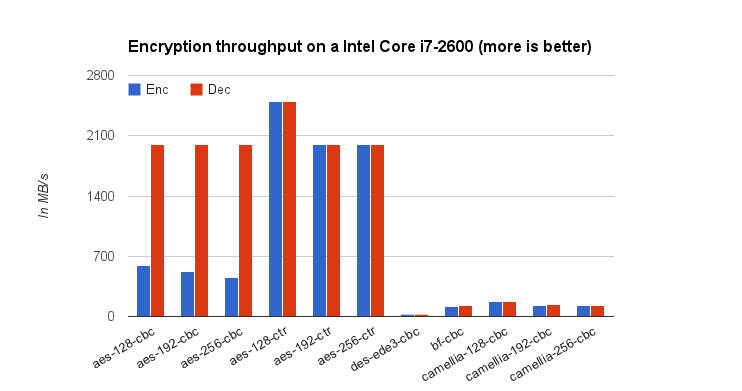
Encryption is used in two places in Cloud Gateway, first when using an HTTPS endpoint, and when using the encryption filter.
Digest
Digest algorithm are used to verify the integrity of files during transfers, if the Configuration/Instances/Instance/CheckObjectHash option is set to true. Almost all providers use the MD5 algorithm, which has a relatively low CPU-cost.
They are also used to check the integrity of files by comparing the content of objects before they are sent to the provider and after they are retrieved. This operation is controlled by the Configuration/Filesystems/FileSystem/InodeDigestAlgorithm setting, and defaults to use the SHA-256 digest algorithm, which is a bit slower than MD5. The following picture compares the different algorithms availables on a single core:
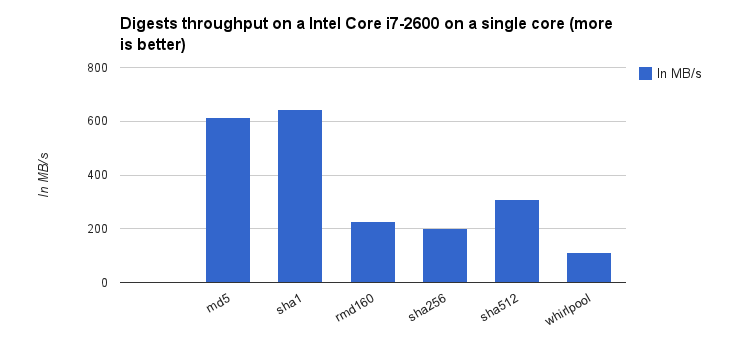
If you want maximum performances and do not care about object integrity, it is possible to disable these two checks.
Compression
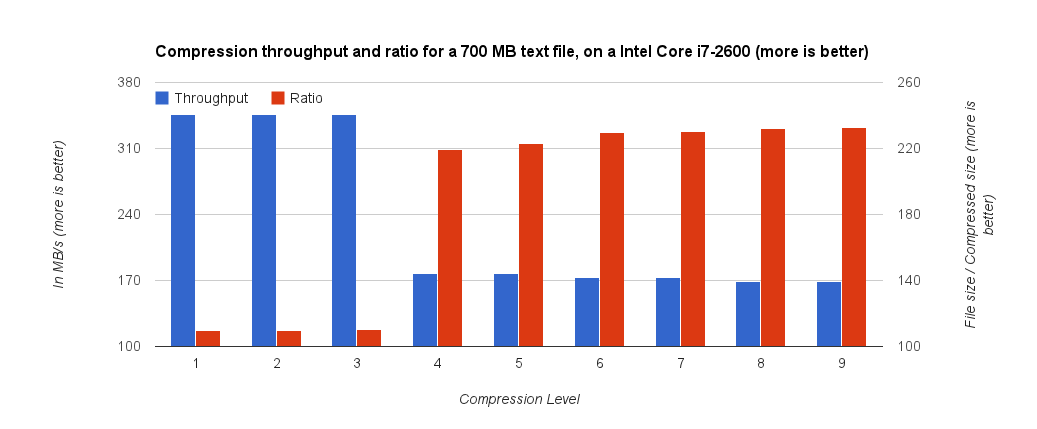
Compression is a very good way to save bandwidth and storage costs, but it comes with a high impact on CPU processing time and memory consumption, depending of the compression level chosen. The following benchmark has been realised using a modest Intel Core i7-2600 CPU, on a plain text log file:
| [15] | SSD |